
Windows recording software · v1.0
SignalHarbor Capture
Record web video.
See what’s happening.
Record supported live streams and download on-demand video in one Windows app. Keep recordings, saved schedules, and processing in view—with Firefox session handoff when a source needs it.
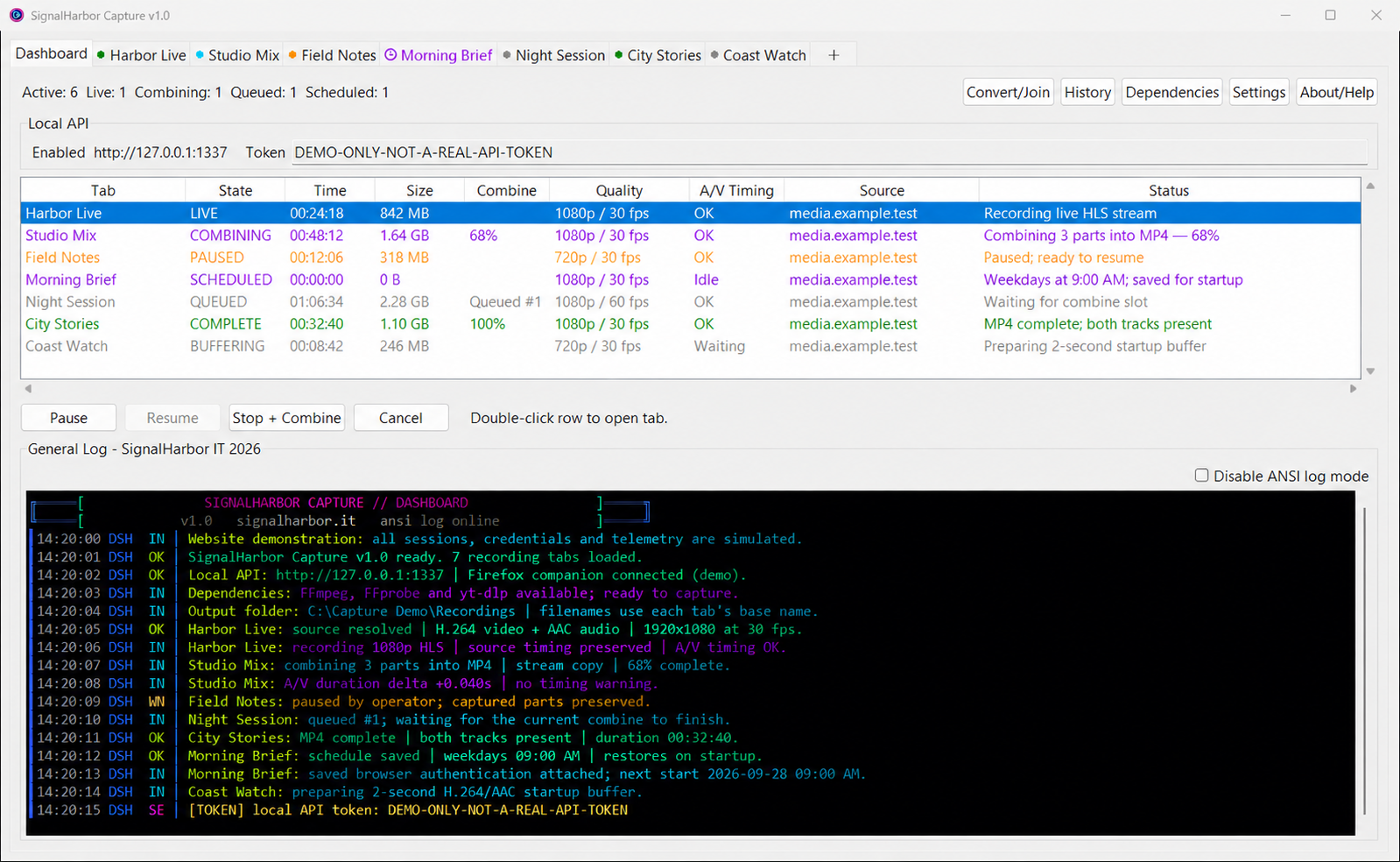
A connected recording workflow
From the first URL
to the finished file.
Keep each source organized without losing sight of the overall workload. Capture brings recording, scheduling, and stream monitoring into the same desktop interface.

Multiple streams, one view.
Give each source its own tab. Follow recording states, elapsed time, file size, and queued work together from the dashboard.

Schedules that stay saved.
Set one-time or recurring recordings with their settings and authentication. Enabled schedules return when you reopen Capture.

Keep capture moving.
Wait and retry when a live source goes offline, and restart stalled video capture according to your settings.
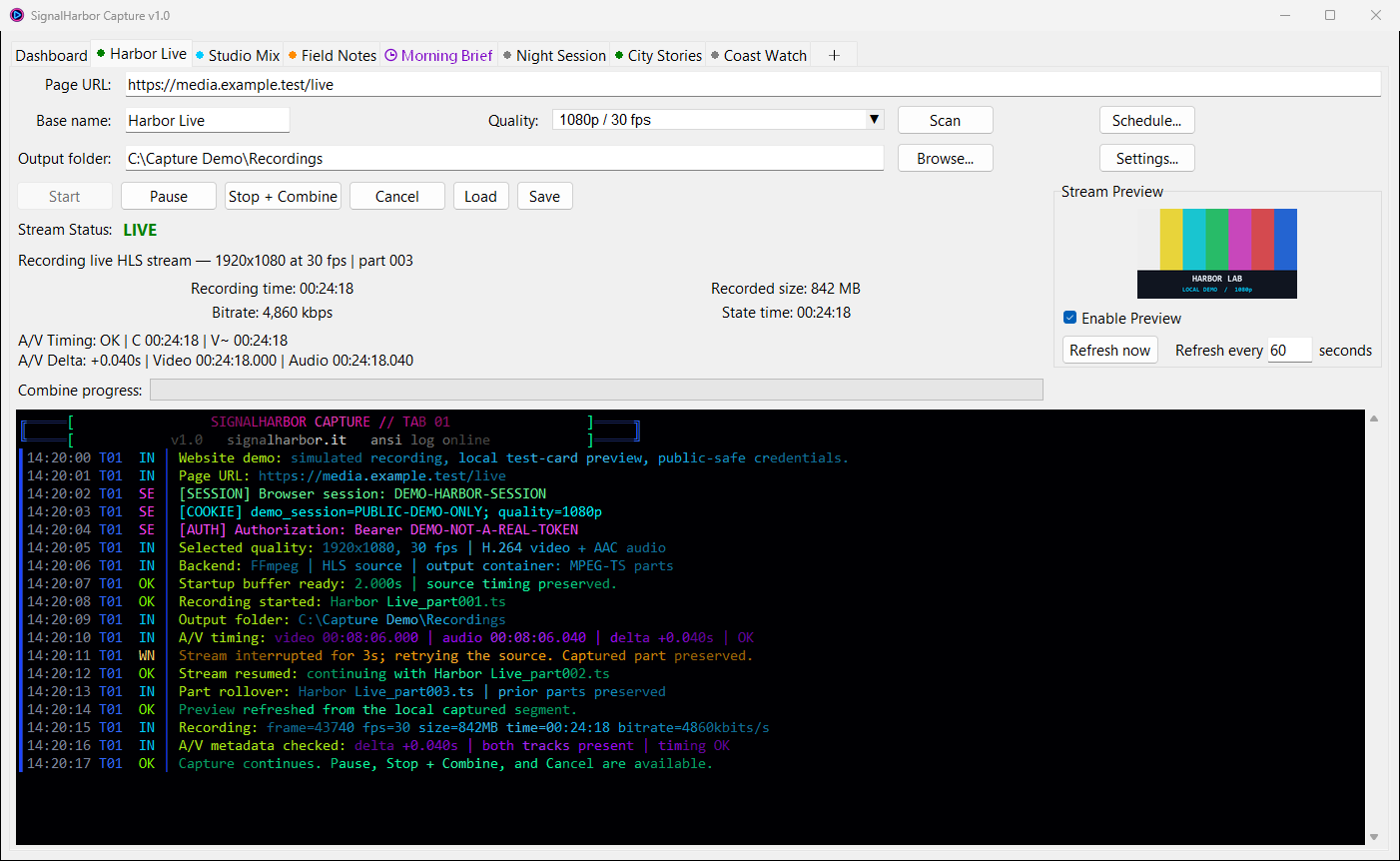
During a recording
More than a
running timer.
Follow the preview, recorded size, bitrate, A/V timing metadata, and color-coded activity while capture continues.
Combine compatible parts.
Join compatible recording parts into MP4 without re-encoding. One shared queue processes a combine at a time while other recordings continue.
Inspect the session.
Use full request headers, cookies, and authentication values for deeper troubleshooting.
Session logs can contain sensitive credentials. Handle them accordingly.
The Firefox companion
Bring the browser session
into Capture.
Right-click any URL or page in Firefox to start a recording right away, or schedule it for later in Capture. The addon passes the page, along with available browser-session context, to Capture.
Send a URL
Start the usual link-based recording workflow from a page or link in Firefox.
Send a full session
Pass available media and authentication context for supported signed-in sources.
Schedule from Firefox
Open Capture’s Schedule window, then choose the time, recurrence, quality, and destination.
The companion is optional for ordinary URL recording. It can also refresh saved schedule authentication without changing the timing.
System requirements
A Windows PC.
Room for the recordings.
The desktop package includes Python. Capture’s dependency manager helps install the recording tools.
Windows 11 · 64-bit
Tested with the application.Windows 10 x64 is expected to work.
Intel or AMD x64 CPU
An x64-compatible processor.This package is an x64 build.
8 GB RAM recommended
For Capture, Firefox, and multiple recordings.A formal minimum has not been benchmarked.
1 GB setup space + recordings
Allow room for the app, recording tools, original parts, and combined output.Setup space is a planning recommendation.
Internet and recording tools. Internet access is required for online sources and tool setup. FFmpeg, ffprobe, and yt-dlp are installed through Capture; Streamlink is optional.
For scheduled recordings: keep Capture running and the PC awake. Saved schedules return after reopening the app; Capture does not start Windows or wake the computer.
Getting started
From ZIP
to first capture.
The Windows package is a complete application folder—not a Setup.exe installer.
Extract the entire folder.
Keep the application, helper files, and bundled runtime together.
Choose where recordings go.
Open SignalHarbor Capture.exe, select an output folder, and complete dependency setup.
Add a supported source.
Paste a URL, choose quality, and start recording. Pair the optional Firefox companion for browser-session workflows.
Compatibility matters. Source support depends on the website, selected extractor, media format, and account access. Browser-session handoff does not guarantee that every video can be recorded. A/V timing metadata does not measure perceptual lip sync.
The desktop app.
The browser companion.
SignalHarbor Capture v1.0 · Firefox companion v1.1